
 Afiya Jafar
Technology & Digital Trends Writer
Afiya Jafar is a technology writer with
5+ years of experience covering technology,
digital trends, artificial intelligence,
software, gadgets, cybersecurity and
emerging technologies.
View Author Profile →
 Sameena Begum
Technology & Digital Content Reviewer
Sameena Begum is a **technology and digital content reviewer** who reviews selected articles to help ensure that information is presented clearly, accurately, and responsibly.
View Reviewer Profile →
HP’s account portal is where you can go to log into your ink plan. You will be taken to a dashboard where you can view your ink status, see how many pages you have printed, review billing details, see your ink shipments, and change your plan. Read on for help logging into HP Instant Ink, whether you are a new user or have an account.
HP Instant Ink is a subscription that automatically ships you new ink whenever your eligible enrolled printer is running out. All you need to get started with HP Instant Ink is an HP account and an enrolled, eligible printer. Use this guide to sign in, access your dashboard, and troubleshoot common login issues.
How to Access HP Instant Ink Login
To subscribe to HP Instant Ink, the most straightforward method is via the HP website.
Follow these steps:
- Use your computer, tablet or smartphone to open your web browser of choice.
- Visit the official HP Instant Ink website.
- Choose the sign-in feature to get into your account.
- Email address or username for your HP account.
- Enter your password.
- Complete any additional security verification if requested.
- Once authenticated, open your Instant Ink dashboard.
Use the same email address that you used to start your subscription. If you have several HP accounts, your subscription info might not show if you sign in using the wrong email address.
If the Instant Ink website sends you to the main page of your HP account, sign in here, then locate and click on the Instant Ink service.
What Can You Do After HP Instant Ink Login?
Once you’ve signed in successfully you will be able to control multiple features of your subscription from the dashboard.
Monitor Ink Supplies and Printing Device Situation
Use the dashboard to view your enrolled printer and the ink status. Make sure your printer is connected to the service and to view account notifications.
Leave your printer online so HP can obtain the information necessary to refill the ink.
View Your Monthly Page Allowance
HP Instant Ink provide a set number of pages per month. With some plans, any unused pages will rollover up to the plan limit.
There are many ways to access your plan details, printed pages, and rollover pages from your account dashboard.
Track Ink Shipments

Troubleshoot shipment information and delivery alerts to see when your replacement ink cartridges will arrive. HP supplies ink and toner supplies according to your printer’s reported needs, which means they aren’t always shipped monthly.
Manage Billing Information
Payment information: Log in to your account to check and amend your payment information.
Based on the country that you are located in and the mode of payment that you may have access to, you will be able to:
- Update your credit or debit card details.
- Change your billing address.
- Review payment history.
- Download available invoices.
- Resolve payment-related account notifications.
Adjust Your Subscription Plan
Should your printing needs increase, you can browse through our plans to find a better option.
Plan-management plans are available on the Instant Ink account. Plans and features are different based on your country, printer, and whether you are eligible for a subscription.
How to Reset Your HP Instant Ink Login Password
Another reason people cannot sign in to their subscriptions is if they forget their password. However, this can easily be reset by following the account recovery procedure via HP.
Follow these instructions:
- Visit the HP account sign-in page.
- Enter your registered email address or username.
- Select the option to continue.
- Choose Forgot your password? When prompted.
- Follow the password recovery instructions provided by HP.
- Open the password reset email and follow its instructions.
- Enter a new password and log in.
If you did not receive the recovery email, please check your spam, junk file and ensure the email address is correctly entered.
Don’t ever give your HP password or verification codes to anyone.
Common HP Instant Ink Login Problems and Their Solutions
Occasionally, the login page will not load properly or the home screen will be blank when you try to log in. These are usually a problem with the browser, login authentication, or an temporary website error.
Here are some practical solutions.
Wrong Email Address or Passcode
If HP does not accept your login details, ensure that you have not misspelt your login credentials, and that you are using the email address you subscribed with.
If you forget your password, do not continue to try signing in-try using the password recovery option offered by HP.
HP Instant Ink Dashboard Not Loading
A blank dashboard or constantly refreshing dashboard can be caused by a browser or login issue.
Give these a shot:
Refresh the webpage.
Close and reopen your browser.
Sign out of your HP account and sign in again.
Open the web page in a private or incognito window.
Clear the browser’s cache and cookies.
Try another supported browser.
They have also experienced issues with dashboard loading and sign-in glitches, such as signing into the main HP account first.
Login Page Keeps Redirecting
If you’re constantly being sent to the login page, access your HP account directly at https://account.hp.com/
Once signed in go to Services and choose Instant Ink.
Try disabling browser extensions that could be disrupting your authentication. If you are using a VPN, disconnect it from the account and try again.
Account Temporarily Unavailable
It could also be due to intermittent website maintenance or services outage.
Try again later. If you still have problems, click here to go to HP Support for help with your account.
Subscription Information Is Missing
However, if you are able to log in but you don’t see your Instant Ink subscription, make sure you are signed into the correct HP account.
Also, make sure that you have set up your HP printer on your Instant Ink account. You don’t need to register your printer for an HP account just to get started.
How to Contact HP Instant Ink Support
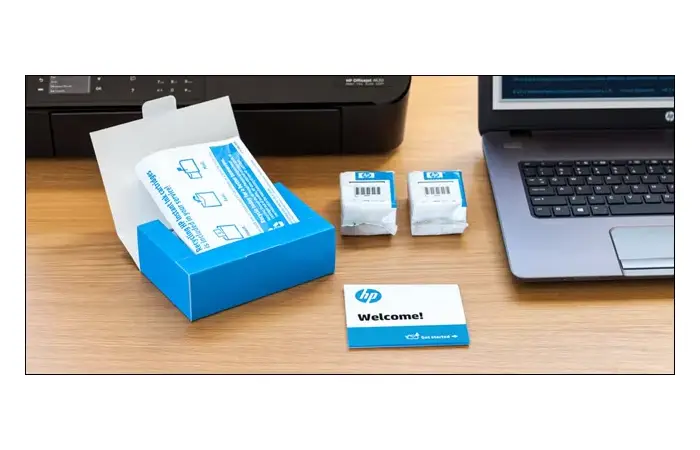
If you cannot resolve an account access problem yourself, contacting HP support is the next practical step.
Visit the HP Instant Ink Support Center to find account assistance and troubleshooting resources.
Before contacting support, prepare the following information:
- Your HP account email address.
- Your printer model.
- Your printer’s serial number, if requested.
- A description of the login error.
- Any relevant error messages or screenshots.
Never include your password or full payment card information in a support request.
Final Thoughts
The HP Instant Ink login allows its subscribers to easily get control over their printer subscriptions online. This dashboard combines all the key functionalities of the account such as monitor ink levels, view shipments, billing details, cancel/reduce plan, etc.
First, check your account details. Then clear your browser data, load the website in a browser window, or access your subscription from the HP account website.
The original forum post goes into great detail on how to resolve a nonbooting OS and is maintained over at the HP official support forum.
AUTHOR
Afiya Jafar is a technology writer with 5+ years of experience covering artificial intelligence, software, applications, gadgets, cybersecurity, cloud computing, internet technologies and emerging technology trends.
AUTHOR PROFILE →
REVIEWER
Sameena Begum is a **technology and digital content reviewer** who reviews selected articles to help ensure that information is presented clearly, accurately, and responsibly.
REVIEWER PROFILE →